 Lemon Hub
Getting started with Lemon Hub
Everything from installing the app to your first models, in about ten minutes. Quick answers are in the FAQ.
1Install the app
Lemon Hub runs on Windows 10 and 11 (64-bit). Download the installer from the download section and run it. Windows SmartScreen may ask you to confirm the first time: choose More info → Run anyway only if you downloaded it from lemonhub.win.
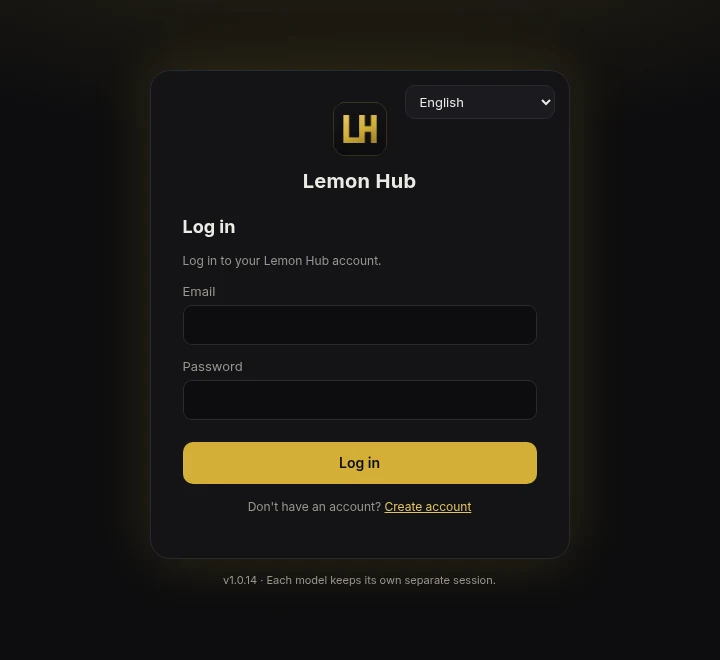
2Create your account
You need a free Lemon Hub account. Create it in the app (Create account on the first screen) or on the website at lemonhub.win/account. It is the same account in both places.
- Use an email you can access and a password of at least 10 characters.
- On the website you can later see your licence, link Discord, change your password and move your licence to a new computer.
3Activate your licence
After logging in, the app asks for your activation key. Paste the key you received and click Activate.
- A key works on one computer. It binds to the computer where you activate it.
- The licence period starts when you activate it, not when you receive the key.
- After a successful check, the app keeps working offline for up to 24 hours.
- No key yet? Contact us.
4Models and services
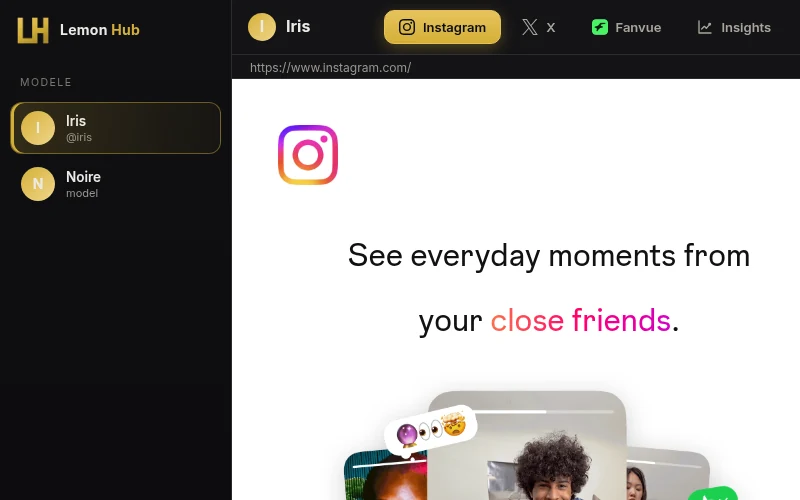
A model is one profile you manage. Click + Add model in the sidebar and give it a name (optionally an avatar and its Instagram and X handles). Each model has its own tabs:
instagram.com in the model's own session. Log in once; the session is remembered.
X
x.com in the same model's session, separate from every other model.
Fanvue
fanvue.com for that model. Insights can use Fanvue's official API with an app the model's account creates at fanvue.com/dev.
Insights
Followers and stats per model, refreshed every 5 minutes, with a daily snapshot. Tokens are optional; you can also enter numbers by hand.
Sessions never mix: logging a model into Instagram does not affect any other model. Lemon Hub does not store your account passwords; you log in on the real site and cookies stay in that model's session on your computer. API tokens you add in a model's settings are encrypted locally.
Google sign-in: Google does not allow “Continue with Google” inside embedded apps. Log in with your email/username and password instead.
5Split screen
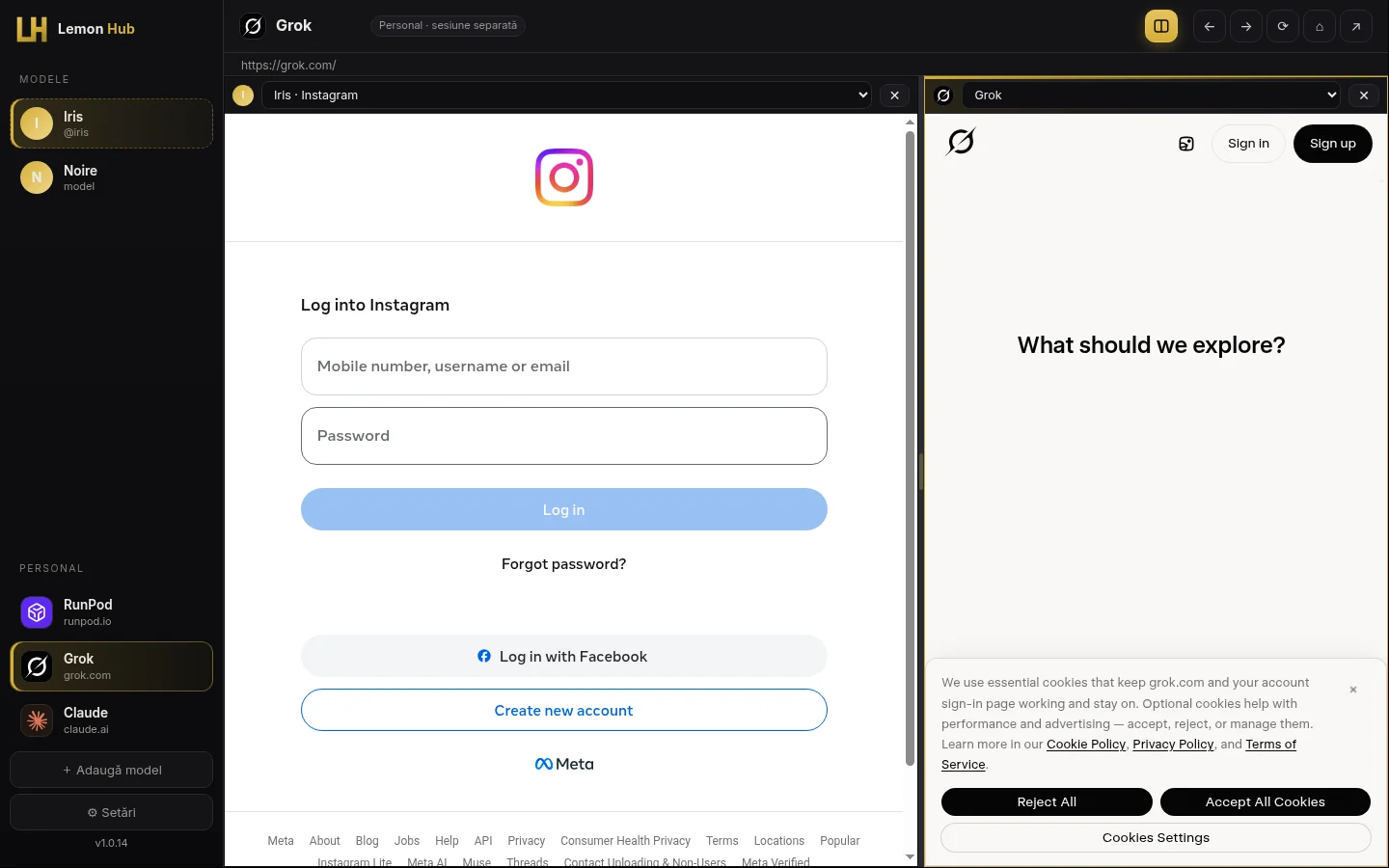
Click the Split screen (2 windows) button at the top right to see two services side by side, for example one model's Instagram next to another tool.
- Pick each side from the sidebar or from the list above that side.
- Drag the divider to resize; double-click it to reset.
- Close one side with its ✕, or click the button again to go back to single view.
6Tools
Under Personal in the sidebar you can keep any other websites you use every day, for example an AI assistant or a cloud dashboard. The app starts with no tools; add them in ⚙ Settings → Personal (tools) with a name and an https:// address.
Every tool opens in its own separate session, and you can log out of it or delete it from Settings.
7Log out of a service
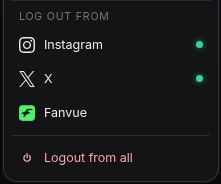
Right-click a model in the sidebar to open the Log out from menu. A green dot shows where that model is signed in.
- Choose Instagram, X or Fanvue to log out of just that service, or Logout from all.
- The app asks you to confirm first.
- API tokens saved in the model's settings (Insights, Fanvue API) are kept. Remove them in the model's settings if you need to.
8Mass upload
Note: Mass upload is included in Lemon Hub 1.0.17 and later. If you don't see it in the sidebar, update the app from ⚙ Settings → Updates.
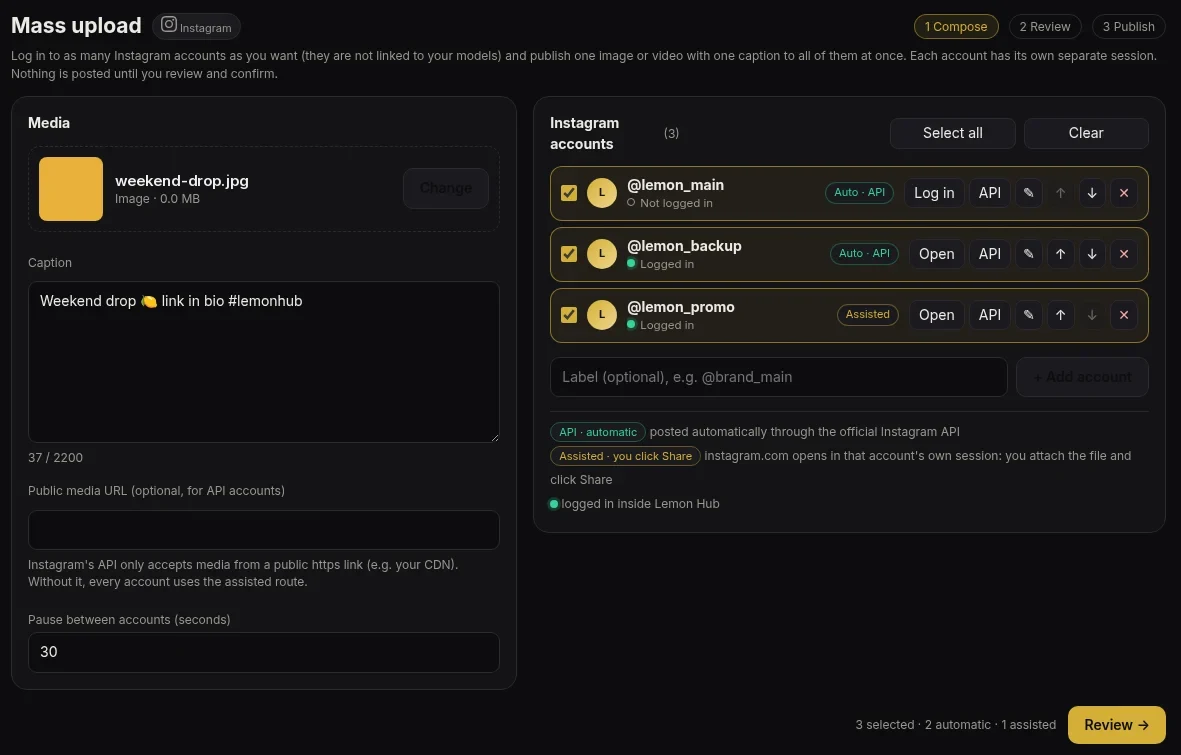
Mass upload publishes one image or video with one caption to several Instagram accounts. It works in three steps: Compose → Review → Publish, and nothing is posted until you tick the confirmation box on the review screen.
- Instagram accounts here are separate from your models, each in its own session (up to 50 per run).
- Files: JPG, PNG, WEBP, MP4 or MOV. Captions up to 2,200 characters.
- API · automatic: for Business/Creator accounts connected through the official Instagram API, using a public https link to the media.
- Assisted · you click Share: Lemon Hub opens instagram.com in that account's session with the caption copied. You click Create, attach the file and click Share yourself. Lemon Hub never clicks, types or uploads inside instagram.com.
9Updates
The installed app checks for updates by itself, downloads them in the background and offers Restart now when a new version is ready. You can also use ⚙ Settings → Updates → Check for updates. The portable version does not update itself; download the installer to get automatic updates.
10Discord Customer role
Join our Discord server, then type /link in any channel. The bot replies privately with a button: open it, log in with your Lemon Hub account and your Discord account gets the Customer role while your licence is active. You can unlink any time from your account.
11Support tickets
For help with your licence or anything private, go to the open-a-ticket channel in our Discord server, choose a category or press Open ticket. A private channel is created that only you and the team can see (one open ticket per person). For anything else, you can also email us from the contact page.
12Moving to a new computer
Your licence works on one computer at a time. To move it, log in at lemonhub.win/account and click Move to a new computer next to your licence (you can do this once every 7 days). Then open Lemon Hub on the new computer and log in: the licence activates there. Need it sooner? Open a ticket.